IPTV Setup Guide Complete Step-by-Step Installation Tutorial
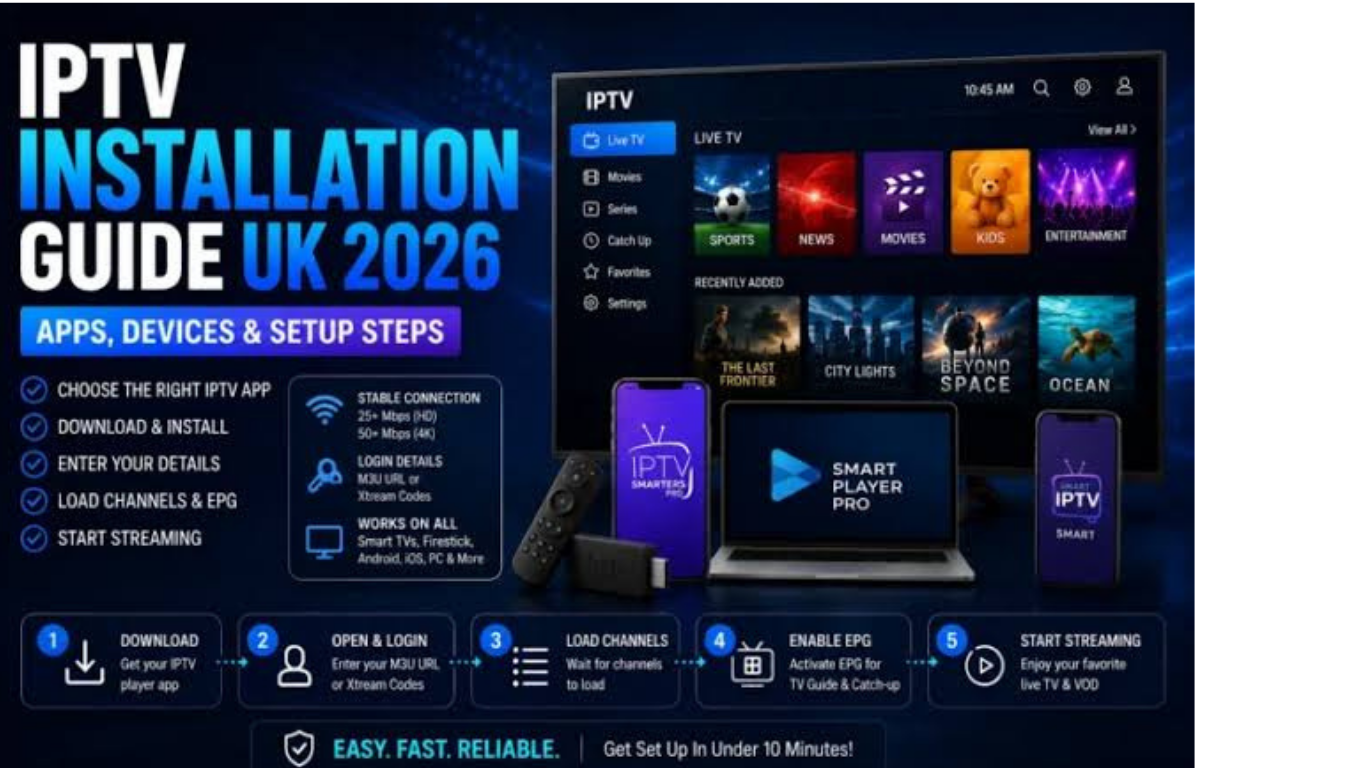
A reliable
IPTV setup guide helps beginners understand how to connect internet-based television services with their preferred devices. IPTV, which stands for Internet Protocol Television, delivers television content through an internet connection instead of traditional cable or satellite systems. It allows users to watch live channels, video content, and other media through compatible applications and devices.
Many people think IPTV installation is complicated, but the basic process is usually simple. You normally need a compatible device, a stable internet connection, an IPTV player application, and login details provided by your chosen IPTV service.
This complete IPTV setup guide explains the installation process for Smart TVs, Firestick devices, Android systems, and mobile devices.
What Is IPTV?
IPTV is a technology that sends television content through internet networks. Instead of receiving signals through a satellite dish or cable connection, IPTV uses internet data transmission to deliver channels and on-demand content.
The main difference between IPTV and traditional television is flexibility. Users can access content on different devices, including:
- Smart TVs
- Android TV boxes
- Amazon Fire TV devices
- Smartphones
- Tablets
- Computers
IPTV services generally work through dedicated player applications where users add their account information or playlist details to access available content.
What You Need Before IPTV Setup
Before starting your installation, prepare the following items:
1. Stable Internet Connection
A good internet connection is one of the most important parts of IPTV performance. Streaming quality depends on network stability, device capability, and the service provider’s infrastructure.
For a better experience:
- Use a reliable broadband connection.
- Prefer Ethernet when possible for TV devices.
- Avoid downloading large files while streaming.
2. Compatible Device
Choose the device where you want to watch IPTV.
Common options include:
- Smart TV
- Android TV box
- Firestick
- Smartphone
- Tablet
- Laptop
3. IPTV Player Application
An IPTV player is software that reads your IPTV information and displays channels or content.
Popular player categories include:
- Smart TV IPTV applications
- Android IPTV players
- Mobile streaming apps
- Desktop media players
Always download applications from trusted sources to reduce security risks.
4. IPTV Account Information
Your IPTV provider may provide information such as:
- Username
- Password
- Server address
- M3U playlist
- Portal information
These details are usually required when configuring the player application.
How to Install IPTV on Smart TV
Smart TVs are among the most common devices used for IPTV streaming.
Step 1: Connect Your Smart TV to the Internet
Make sure your television is connected through:
- Wi-Fi connection
- Ethernet cable
Check that other online apps are working correctly before starting IPTV installation.
Step 2: Open the TV App Store
Depending on your television brand, open the available application store.
Search for a compatible IPTV player application.
Step 3: Install the IPTV Player
Download and install your preferred IPTV application.
After installation:
- Open the application
- Accept required permissions
- Select the login option.
Step 4: Add IPTV Details
Most IPTV players ask for information such as:
- Username
- Password
- Server URL
Some applications also support playlist-based setup using an M3U link.
Step 5: Load Channels
After entering the correct details:
- The application connects to the service.
- Channel lists appear
- Categories become available
You can then browse live channels and available content.
IPTV Setup on Firestick
Amazon Fire TV Stick devices are widely used because they are affordable and portable.
Step 1: Connect Firestick
Plug your Firestick into your TV's HDMI port and connect it to the internet.
Step 2: Install a Compatible IPTV Application
Open the Fire TV application area and install a suitable IPTV player from an official source when available.
Step 3: Enter Login Information
Launch the application and add your IPTV account details.
Common information includes:
- Username
- Password
- Server information
Step 4: Start Streaming
Once connected, the application should display available channels and categories.
IPTV Setup on Android Devices
Android phones, tablets, and TV boxes offer flexible IPTV options.
Installation Steps
- Open the Android application store.
- Download a trusted IPTV player.
- Open the application
- Select your preferred login method.
- Enter your IPTV details.
- Save settings and load content.
Android TV boxes are also commonly used because they provide a larger-screen viewing experience.
IPTV Setup on iPhone and iPad
Apple users can also use IPTV applications designed for iOS devices.
Basic setup:
- Download an IPTV player from the official Apple App Store.
- Open the application
- Add a playlist or account details.
- Allow the application to update channels.
- Begin streaming
Always review application permissions and privacy settings before use.
How to Configure IPTV Player Apps
Most IPTV applications use one of two common setup methods.
M3U Playlist Method
An M3U playlist is a file or link containing channel information. The IPTV player reads this information and organizes available content.
Xtream Codes Method
Xtream Codes-style login usually requires:
- Username
- Password
- Server URL
This method is often easier because users only enter account details instead of manually adding playlists.
Common IPTV Problems and Solutions
Even after correct installation, users may experience technical issues.
IPTV Buffering Problems
Possible causes:
- Weak internet connection
- Network congestion
- Device limitations
Solutions:
- Restart your router
- Use wired internet
- Close background applications
- Reduce network usage
Channels Not Loading
Try:
- Checking account information
- Refreshing the playlist
- Restarting the application
Application Crashes
Possible solutions:
- Update the application
- Clear app cache
- Restart the device
- Reinstall the player
Tips for Better IPTV Performance
Follow these practices for smoother streaming:
Keep Your Device Updated
Regular updates can improve compatibility and security.
Use Quality Network Equipment
A strong router can improve streaming performance throughout your home.
Choose Reliable IPTV Applications
Avoid unknown applications from unverified sources. Fake IPTV applications have been used in some cases to distribute malware, so users should be careful when installing software.
Organize Your Channels
Many IPTV players allow users to:
- Create favorites
- Hide unwanted categories
- Customize viewing preferences
IPTV Security and Legal Considerations
When using IPTV services, it is important to understand the difference between technology and content rights.
IPTV itself is a delivery technology. However, the legality of a service depends on whether it has appropriate rights and permissions to distribute the content.
Users should:
- Choose legitimate services
- Avoid suspicious applications
- Protect account information
- Download software from trusted sources.
Responsible usage helps create a safer streaming environment.
Benefits of Using IPTV
IPTV provides several advantages compared with traditional television systems:
Flexible Viewing
Users can access content from multiple devices instead of being limited to one television setup.
Internet-Based Convenience
Because IPTV uses internet connections, users can watch content without installing traditional satellite equipment.
Device Compatibility
Many IPTV solutions support different platforms, making it easier to watch content at home or while travelling.
Final Thoughts
A proper IPTV setup guide makes installation easier for beginners and experienced users. The process usually involves choosing a compatible device, installing an IPTV player, entering account information, and configuring settings for smooth streaming.
Whether you are using a Smart TV, Firestick, Android device, or mobile phone, understanding the basic setup steps can help you get started quickly. Always select trusted applications and use
IPTV services that follow applicable content licensing rules.
FAQs
What is IPTV?
IPTV is a technology that delivers television content through internet networks instead of traditional cable or satellite systems.
How do I set up IPTV?
To set up IPTV, install a compatible IPTV player, enter your provided account details or playlist information, and allow the application to load available content.
Can IPTV work on a Smart TV?
Yes, many Smart TVs support IPTV applications that allow users to configure IPTV services.
Do I need a special device for IPTV?
No. IPTV can work on many devices, including Smart TVs, Android boxes, Firestick devices, smartphones, tablets, and computers.
Why is my IPTV buffering?
Buffering may happen because of internet instability, network congestion, device limitations, or service-side issues.
Is IPTV legal?
IPTV technology is legal. However, users should ensure that the service they choose has proper rights to distribute the content.
What internet speed is needed for IPTV?
The required speed depends on video quality, device type, and network conditions. A stable broadband connection is recommended for reliable streaming.
Internal Link Plan
| Article Section | Anchor Text | Destination | Reason |
| Introduction | IPTV service | IPTV service page | Explain available services |
| Smart TV section | Smart TV IPTV | Smart TV guide page | Improve topical coverage |
| Firestick section | Firestick IPTV setup | Firestick article | Support device search intent |
| Android section | Android IPTV player | Android setup page | Build internal relevance |
| Troubleshooting section | IPTV problems | Support page | Help users solve issues |
Schema Recommendation
Recommended schema:
- Article schema
- FAQ schema
- HowTo schema (only for the step-by-step setup section if implemented according to Google guidelines)
Image Plan
This article would benefit from approximately 3 images. Would you like me to generate them? Reply “Generate images.”
