How to Watch IPTV on Smart TV UK: Complete Setup Guide
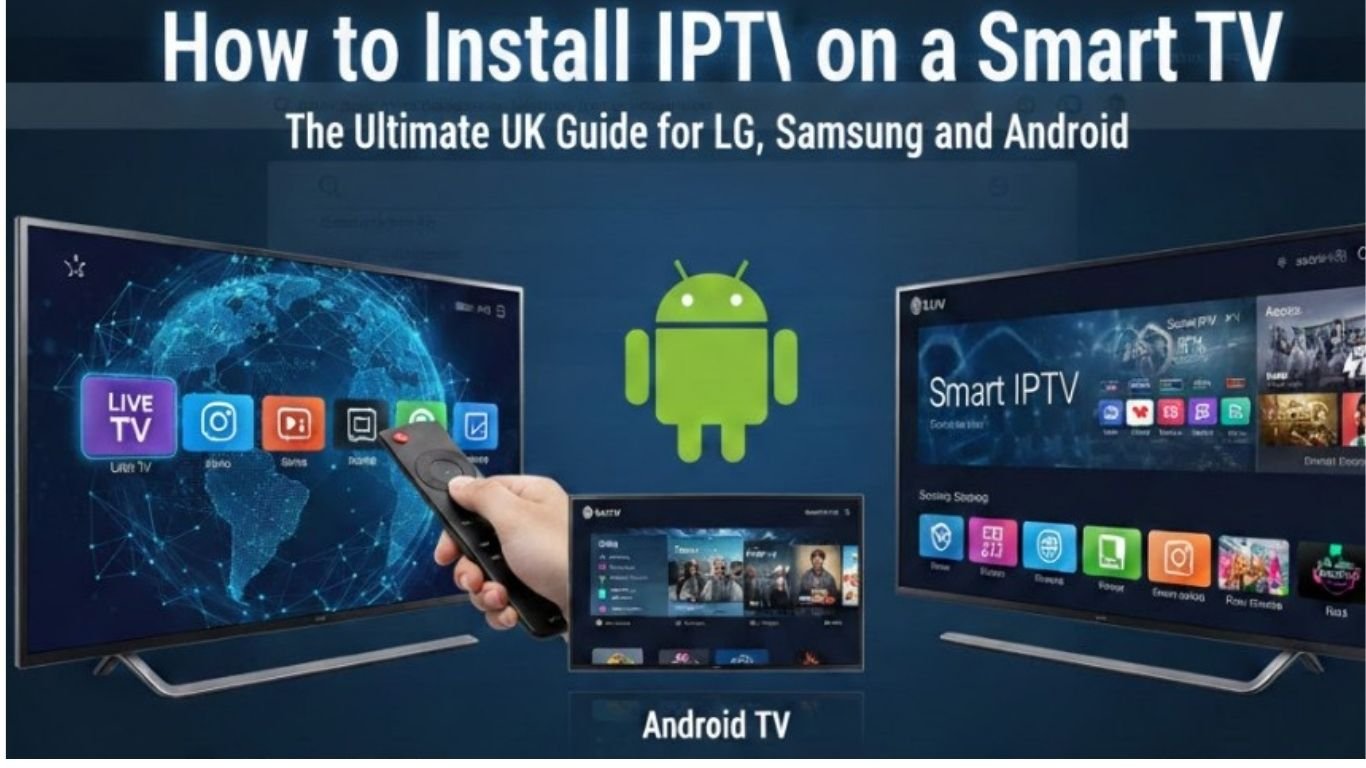
If you want to watch IPTV on a Smart TV in the UK, the setup can be much easier than it first appears. Modern televisions from brands such as Samsung, LG, Sony, Hisense, and others can support internet-based TV through compatible apps or external streaming devices.
Instead of relying on a traditional television signal, IPTV delivers television and other video content through an internet connection. The exact experience depends on your television, the app you use, your internet connection, and, importantly, whether the content provider has the rights to distribute the channels or programmes you watch.
This guide explains how to watch
IPTV on a Smart TV in the UK, what you need before getting started, how applications generally work, and what to check if your stream does not play correctly.
What Is IPTV?
IPTV, or Internet Protocol Television, is a method of delivering television content over an internet connection. Rather than receiving programming exclusively through terrestrial, satellite or cable television infrastructure, the content is transmitted using internet protocols.
This technology can be used for live television, on-demand video and other forms of streamed programming.
The term IPTV describes the delivery technology rather than automatically indicating whether a particular service is legitimate. Some providers distribute content legally under the necessary licences, while others may offer channels without having the required rights.
For viewers in the UK, it is therefore important to choose a provider that is authorised to distribute the content it offers.
What Do You Need to Watch IPTV on a Smart TV?
Before starting the setup, you normally need four things:
- A compatible Smart TV or streaming device.
- A stable internet connection.
- A compatible IPTV application.
- A subscription or playlist from a legitimate content provider.
Your television’s operating system determines which applications are available. Different manufacturers and TV models can have different app stores and compatibility requirements.
If your Smart TV does not support the application you want to use, an external streaming device may provide another option.
Is IPTV Available on Every Smart TV?
Not necessarily.
Smart TVs use different operating systems, and applications available on one platform may not be available on another. Even televisions made by the same manufacturer can have different compatibility depending on the model and operating-system version.
Common Smart TV platforms include systems associated with Samsung, LG, Google TV and Android TV, along with other manufacturer-specific platforms.
Before purchasing or subscribing to anything, check the application requirements and confirm that your television supports the required software.
How to Watch IPTV on a Samsung Smart TV
Samsung Smart TVs have their own application environment, so the first step is to make sure your television is connected to the internet.
Step 1: Connect Your Samsung TV to the Internet
Open the television’s network settings and connect it to your home Wi-Fi network or use an Ethernet cable if your model supports a wired connection.
A wired connection can be useful when the television is close to your router because it can reduce problems associated with weak wireless signals.
Step 2: Open the App Store
Using your Samsung remote, open the TV’s application store and search for a compatible
IPTV UK application.
The exact applications available can change over time and may differ by region and TV model.
Step 3: Install a Compatible Application
Choose an application that is compatible with your television and review its information before installing it.
Some applications are simply media players. They do not necessarily provide television channels themselves. You may need to enter a playlist, login details or another source supplied by your authorised provider.
Step 4: Enter Your Provider Details
After installing the application, follow its instructions for adding your service.
Depending on the application and provider, you may be asked for information such as a playlist URL, account credentials or another supported configuration.
Only use credentials or playlist information supplied by a legitimate provider.
Step 5: Start Watching
Once the application has successfully loaded the authorised content, you can browse the available categories and select a programme.
If nothing appears, check that the subscription details have been entered correctly and that your provider supports the application.
How to Watch IPTV on an LG Smart TV
LG Smart TVs use their own software environment, and application availability varies by model and region.
Connect Your LG TV
First, connect the television to your home network. You can normally use Wi-Fi or a wired Ethernet connection where supported.
Find a Compatible Application
Open the LG application store and search for a suitable IPTV player.
Before installing an application, check its compatibility with your TV model and operating system.
Add Your Service
Open the application and follow its setup instructions.
Depending on the player, you may need to enter a playlist address, username and password, or another configuration supplied by your provider.
Test the Connection
Select an available channel or programme and allow the stream to load.
If playback starts normally, your basic setup is complete.
How to Watch IPTV on Android TV or Google TV
Android TV and Google TV can provide additional flexibility because compatible applications can be installed through the relevant application ecosystem.
Start by connecting the television or streaming device to the internet.
Then open the Google Play Store and search for a compatible IPTV player.
Install the application, launch it and follow the application’s instructions for adding your authorised service.
The precise process differs between applications. Some use playlist URLs, while others support account-based login systems.
Once your content has been added, select a channel or programme to test playback.
Can You Use IPTV on a Smart TV Without an App?
It depends on the television and service.
Some Smart TVs may support particular streaming technologies directly through their browser or built-in features, but a dedicated media player application is generally designed to make playlist management and playback easier.
If your television does not support the application you need, an external device such as a compatible streaming player may be an alternative.
Always check the compatibility requirements before buying additional hardware.
What Internet Speed Do You Need for IPTV?
There is no single internet speed that guarantees perfect streaming because performance depends on several factors.
These include:
- Video resolution
- Compression used by the stream
- Network congestion
- Wi-Fi signal strength
- Router performance
- Number of devices using the connection
- Distance from the router
- Quality of the content source
Higher-resolution video generally requires more bandwidth than lower-resolution video.
For a smoother experience, make sure your Smart TV has a stable connection rather than focusing only on the maximum download speed advertised by your internet provider.
If possible, use Ethernet when your TV and router are close enough to make a wired connection practical.
Wi-Fi or Ethernet for IPTV?
Both can work, but each has advantages.
Wi-Fi is convenient and avoids additional cables. For many homes, a modern router positioned reasonably close to the television can provide enough performance for streaming.
Ethernet provides a direct wired connection and can be useful if your Wi-Fi signal is weak or inconsistent.
If you frequently experience buffering despite having a fast broadband connection, testing the television with Ethernet can help determine whether Wi-Fi is contributing to the problem.
Why Does IPTV Keep Buffering?
Buffering is one of the most common streaming complaints.
Several different issues can cause it.
Weak Wi-Fi
Your television may have a poor wireless signal even when other devices in your home work normally.
Move the router closer if practical, reduce physical obstructions or consider a wired connection.
Network Congestion
Multiple devices may be using your connection simultaneously. Downloads, gaming, video calls and other high-bandwidth activities can affect streaming performance.
Provider-Side Problems
If your internet connection is working normally but a particular stream repeatedly fails, the problem could be associated with the content source or provider.
Try another authorised stream to see whether the problem affects everything or only one source.
Outdated Software
An outdated television operating system or application can sometimes cause compatibility problems.
Check whether updates are available for your TV and installed applications.
How to Fix IPTV Not Working on a Smart TV
If your IPTV application will not load, work through these checks in order.
1. Check Your Internet Connection
Try another application on your television.
If other streaming services also fail, your network connection may be the problem.
2. Restart the TV
Turn the television off and restart it. A simple restart can resolve temporary application or network issues.
3. Restart Your Router
Disconnect your router from power, wait briefly, reconnect it and allow the connection to return.
4. Check Your Login Information
If your service requires credentials, verify that the username and password have been entered correctly.
Pay particular attention to capital letters, numbers and spaces.
5. Check Your Subscription
If your account has expired or has reached a device limit, playback may stop.
Check the account information supplied by your authorised provider.
6. Update the Application
Look for an available update in your television’s application store.
7. Test Another Channel
If one stream fails while other authorised streams work, the issue may be specific to that source rather than your entire setup.
Can You Watch IPTV on a Fire TV or Streaming Stick?
If your Smart TV does not support a suitable application, a compatible external streaming device can be another option.
Fire TV and other streaming platforms have their own application ecosystems. The exact installation process depends on the device, software version and application.
The important point is that the 4 K IPTV
streaming device must support the application, and the service must have the necessary rights to distribute its content.
How to Improve IPTV Streaming Quality
A few simple changes can improve your viewing experience.
Use a Stable Internet Connection
Consistency is often more important than a very high advertised download speed.
Use Ethernet Where Possible
A wired connection can help if your TV is experiencing unstable Wi-Fi.
Reduce Unnecessary Network Traffic
Pause large downloads and other high-bandwidth activities while watching a high-resolution stream.
Keep Your TV Updated
Install available firmware and application updates when appropriate.
Keep Your Router in a Good Location
Avoid placing the router behind large objects or inside enclosed cabinets where possible.
Is IPTV Legal in the UK?
The technology itself is not inherently illegal. The important issue is whether the provider has the necessary rights to distribute the content being offered.
A legitimate
IPTV UK service can deliver television programming through internet protocols. However, accessing copyrighted television channels or programmes through an unauthorised service can raise legal issues.
UK viewers should therefore research a provider before subscribing and look for clear information about the content rights and licensing arrangements.
Be especially cautious about services advertising premium channels at unusually low prices while providing little information about their business or licensing.
How to Choose an IPTV Service in the UK
If you are comparing services, don’t look only at the number of channels advertised.
Consider:
- Whether the provider is authorised to distribute its content
- Compatible Smart TV platforms
- Available applications
- Streaming quality
- Customer support
- Subscription terms
- Device compatibility
- Privacy and security information
- Refund and cancellation policies
A transparent provider should make its terms understandable and provide enough information for customers to know what they are purchasing.
Does a VPN Make IPTV Legal?
A VPN and content licensing are two different things.
A VPN can encrypt traffic between your device and a VPN server and may provide additional privacy on certain networks. It does not give a provider permission to distribute copyrighted television content.
Likewise, using a VPN does not automatically make an unauthorised streaming service lawful.
If you are concerned about legality, focus first on whether the content provider has the necessary distribution rights.
Can You Watch IPTV on Multiple Smart TVs?
This depends on the provider’s subscription terms and the application being used.
Some services permit multiple devices, while others restrict simultaneous connections or the total number of registered devices.
Before purchasing a subscription, check the provider’s terms rather than assuming that one account can be used on every television in your home.
Common Smart TV IPTV Problems
Here are some of the most common problems users encounter:
The app cannot be found:
Your TV may not support that particular application, or the application may not be available in your region.
The app opens but shows no content:
Check your account, playlist or provider configuration.
The video keeps buffering:
Test your internet connection and Wi-Fi signal. Try Ethernet if available.
The stream has poor quality:
The problem can involve the source, network connection, device or video resolution.
The app crashes:
Restart the television and check for application and system updates.
The login does not work:
Check your credentials and subscription status with your provider.
Frequently Asked Questions
What is the easiest way to watch IPTV on a Smart TV?
The simplest method is generally to install a compatible IPTV player from your television’s supported application store and then add your authorised service according to the provider’s instructions.
Can I watch IPTV on Samsung Smart TV?
Many Samsung Smart TVs support compatible streaming applications, although availability depends on the TV model, operating system and region. Check the Samsung application store for compatible options.
Can I watch IPTV on LG Smart TV?
Compatible applications may be available through the LG app ecosystem. Application availability can vary by model and region.
Can I watch IPTV without a satellite dish?
Internet-based IPTV does not require a satellite dish. You need a suitable internet connection and compatible device or application.
Do I need fast broadband for IPTV?
Your required bandwidth depends on video quality and other factors. A stable connection is important for reliable streaming, particularly with higher-resolution content.
Why is my IPTV buffering even though my internet is fast?
A high advertised broadband speed does not guarantee a strong connection between your router and television. Wi-Fi interference, network congestion, application issues or problems with the content source can also cause buffering.
Can I use an external streaming device?
Yes, as long as the device and application support the service. This can be useful when a Smart TV does not support the application you want.
Final Thoughts
In the UK can be straightforward once you understand the basic requirements. Start by checking your television’s operating system and application compatibility, connect the TV to a reliable internet connection, install an appropriate player and follow the authorised provider’s setup instructions.
If you experience buffering or playback problems, check your network connection, restart your equipment, update your software and confirm that your account is active.
Most importantly, choose a provider that has the appropriate rights to distribute the content it offers. The technology behind IPTV is simply a method of delivering video over the internet; the legality of a particular service depends on how its content is obtained and distributed.
For more guides about setting up and using internet-based television services, visit
IPTV UK.
