How to Setup IPTV on Samsung TV Complete Step-by-Step Guide
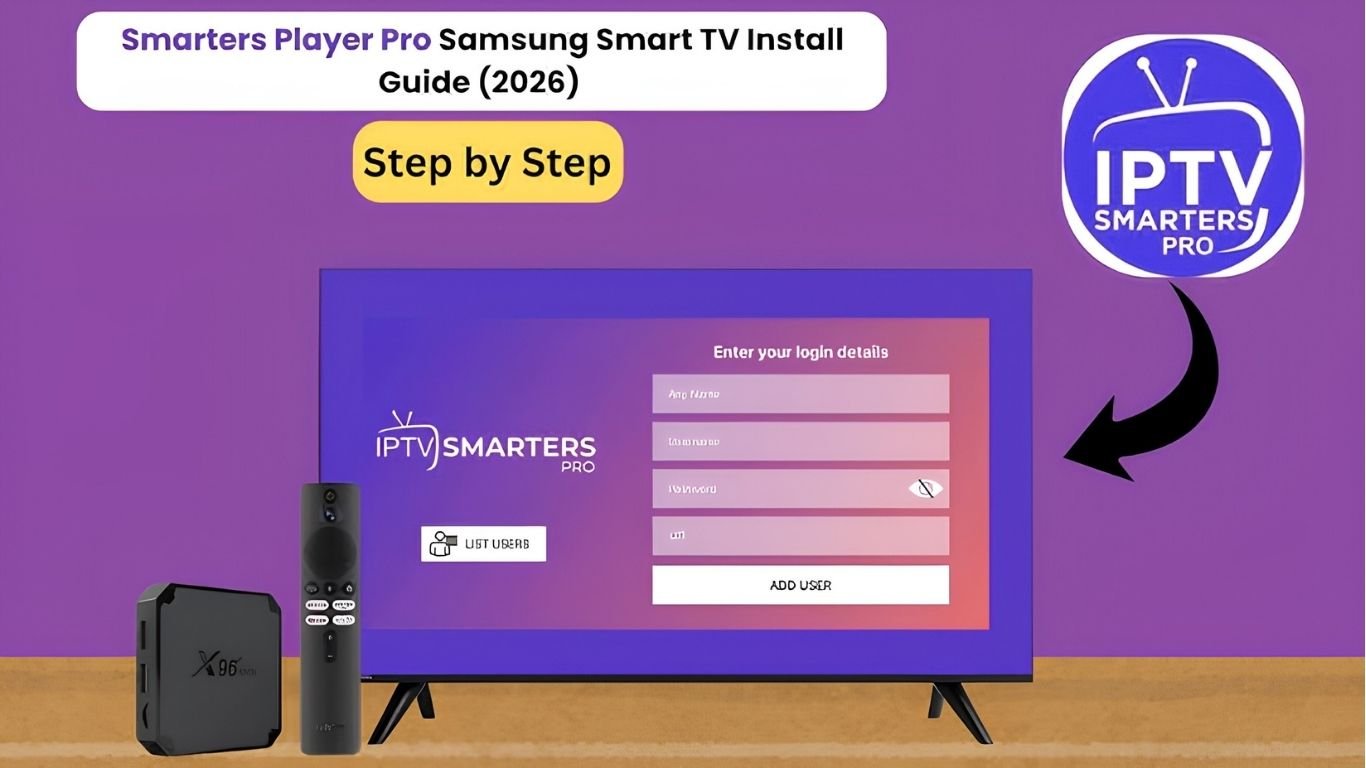
How to Setup IPTV on Samsung TV Complete Step-by-Step Guide
Samsung Smart TVs are among the best televisions for streaming live TV, movies, and sports. Thanks to Samsung's Tizen operating system, installing an IPTV player is simple and doesn't require additional hardware for most users. Modern Samsung TVs support several IPTV player apps through the Smart Hub, allowing users to stream content by entering either an M3U playlist or Xtream Codes credentials.
If you've recently purchased an IPTV subscription and are wondering how to watch it on your Samsung Smart TV, this guide covers everything you need—from installation to troubleshooting.

What Is IPTV?

IPTV (Internet Protocol Television) is a technology that delivers television content over an internet connection instead of traditional cable or satellite.
With an IPTV subscription, you can watch:
  • Live TV channels
  • Sports events
  • Movies
  • TV series
  • International channels
  • Video-on-demand (VOD)
All you need is:
  • Samsung Smart TV
  • Stable internet connection
  • IPTV subscription
  • IPTV player application

Requirements Before Setting Up IPTV

Before you begin, make sure you have:
  • Samsung Smart TV (preferably 2016 or newer running Tizen OS)
  • Active internet connection
  • IPTV subscription details
  • M3U Playlist URL or Xtream Codes login
  • Samsung account for downloading apps
A stable internet connection is recommended—around 10 Mbps for HD streaming and 25 Mbps or higher for 4K content.

Best IPTV Apps for Samsung TV

Samsung TVs do not include a built-in IPTV player, so you'll need to install one.
Popular choices include:
IPTV Smarters Player⭐⭐⭐⭐⭐
Smart IPTVLimited⭐⭐⭐⭐
SS IPTVYes⭐⭐⭐⭐
SET IPTVYes⭐⭐⭐⭐
Duplex IPTVYes⭐⭐⭐⭐⭐
Choose the application recommended by your IPTV provider whenever possible.

Step 1: Connect Samsung TV to the Internet

Before installing any app:
  1. Open Settings
  2. Select General
  3. Choose Network
  4. Connect to Wi-Fi or Ethernet
  5. Confirm internet access
Ethernet usually provides the most stable streaming experience.

Step 2: Open Samsung Smart Hub

Now install your IPTV application.
  1. Press the Home button.
  2. Open Apps.
  3. Access the Samsung App Store.
Samsung Smart Hub allows compatible IPTV applications to be installed directly on supported Tizen TVs

Step 3: Install an IPTV Player

Search for one of the supported IPTV players.
Examples include:
  • IPTV Smarters Player
  • SS IPTV
  • Smart IPTV
  • SET IPTV
  • Duplex IPTV
Select your preferred app and click Install.
Wait until installation finishes.

Step 4: Launch the IPTV Application

After installation:
  1. Open the app.
  2. Accept permissions if requested.
  3. Select your login method.
Most IPTV providers support:
  • Xtream Codes API
  • M3U Playlist URL

Method 1: Set Up IPTV Using Xtream Codes

This is the easiest method.
Enter:
  • Server URL
  • Username
  • Password
These details are provided by your IPTV service.
Click Login.
The application will automatically download:
  • Live channels
  • Movies
  • TV series
  • Electronic Program Guide (EPG)

Method 2: Set Up IPTV Using M3U Playlist

If your provider supplies an M3U link:
  1. Choose Playlist URL
  2. Paste the M3U address.
  3. Save settings
  4. Wait for the playlist to load
The channel list will appear once synchronisation finishes.

Configure the Electronic Program Guide (EPG)

Many IPTV providers also provide an EPG URL.
Adding the EPG allows you to:
  • View TV schedules
  • Browse upcoming programmes
  • Improve navigation
  • Display programme information
Simply paste the EPG URL into your IPTV player's settings if supported.

Organise Your IPTV Channels

After setup, organise your viewing experience.
You can:
  • Create favourites
  • Hide unwanted channels
  • Sort by country
  • Group sports channels
  • Create movie categories
Most IPTV applications include these features.

Improve Streaming Performance

For smoother playback:
  • Use Ethernet instead of Wi-Fi.
  • Restart your router weekly.
  • Close unused apps
  • Update your Samsung TV
  • Update your IPTV player.
  • Use 5 GHz Wi-Fi if available
These simple steps often reduce buffering.

Common IPTV Problems and Solutions

Buffering

Possible causes:
  • Slow internet
  • Weak Wi-Fi
  • Busy server
  • Network congestion
Solutions:
  • Restart router
  • Use Ethernet
  • Lower stream quality
  • Restart the IPTV app.

Playlist Not Loading

Check:
  • M3U URL
  • Username
  • Password
  • Server URL
Even one incorrect character can prevent login.

App Keeps Crashing

Try:
  • Restart Samsung TV
  • Reinstall the app
  • Clear app cache if supported
  • Update TV software

No Channels Showing

Usually caused by:
  • Expired subscription
  • Incorrect login
  • Provider maintenance
Contact your IPTV provider if everything appears correct.

Keep Your Samsung TV Updated

Software updates improve:
  • Performance
  • Security
  • App compatibility
To update:
  1. Open Settings
  2. Select Support
  3. Choose Software Update
  4. Click Update Now
Keeping the TV updated can improve compatibility with newer apps.

Tips for the Best IPTV Experience

For optimal streaming:
  • Use high-speed broadband
  • Prefer Ethernet over Wi-Fi
  • Keep apps updated
  • Restart the TV occasionally.
  • Use a reliable IPTV provider.
  • Avoid multiple downloads while streaming.
These practices help deliver smoother playback.

Is IPTV Legal?

IPTV technology itself is legal. However, legality depends on whether the service has the appropriate rights to distribute the content being streamed. Always choose providers that operate lawfully and comply with the copyright regulations in your country.

Why Choose IPTV UK?

If you're looking for a reliable streaming experience, IPTV UK offers a user-friendly service compatible with Samsung Smart TVs Once you receive your login details, simply install a compatible IPTV player and enter your credentials to begin watching. Visit your website at https://iptvuk.lat/ to explore available plans and compatibility information.

Frequently Asked Questions

Can I install IPTV directly on Samsung Smart TV?

Yes. Most Samsung Smart TVs running the Tizen operating system support compatible IPTV player apps through the Samsung App Store.

Which IPTV app is best for Samsung TV?

Popular options include IPTV Smarters Player, SS IPTV, Smart IPTV, Duplex IPTV, and SET IPTV.

Do I need a Firestick for IPTV?

No. Most Samsung Smart TVs can run compatible IPTV applications without an external streaming device.

What internet speed is recommended?

  • HD Streaming: 10 Mbps or higher
  • 4K Streaming: 25 Mbps or higher

Can I use an M3U playlist?

Yes.
Most IPTV players support M3U playlists as well as Xtream Codes login.

Why does my IPTV keep buffering?

Buffering is commonly caused by:
  • Slow internet
  • Wi-Fi interference
  • Server congestion
  • Outdated software

Can I use Wi-Fi?

Yes, but a wired Ethernet connection usually provides the most stable performance for IPTV streaming.

Conclusion

Setting up IPTV on a Samsung Smart TV is straightforward once you have the correct subscription details and a compatible IPTV player. Install an IPTV app from the Samsung Smart Hub, enter your M3U playlist or Xtream Codes credentials, and you'll be ready to enjoy live TV, movies, sports, and on-demand content.
For the best viewing experience, keep your TV and apps updated, use a reliable internet connection, and choose a reputable IPTV service. Following the steps in this guide will help you get your IPTV service running quickly and minimise common playback issues.

Conclusion

To conclude, Complete Guide to Choosing the Best IPTV UK Provider provides valuable insights into improving your IPTV experience on any device. By following the steps in this guide, you can enjoy smooth and high-quality streaming with ease.

Always rely on a trusted IPTV provider, keep your app updated, and maintain a stable internet connection for the best performance. For reliable IPTV services in the UK, visit iptvuk.lat — your go-to destination for premium IPTV UK subscriptions.

Contact Us

Have questions or need assistance? We're here to help!

Get in Touch

Our Hours

Customer Support: 24/7

Sales Department: Mon-Fri, 9am-6pm GMT

Technical Support: 24/7

Send Us a Message (via WhatsApp)

    WhatsApp