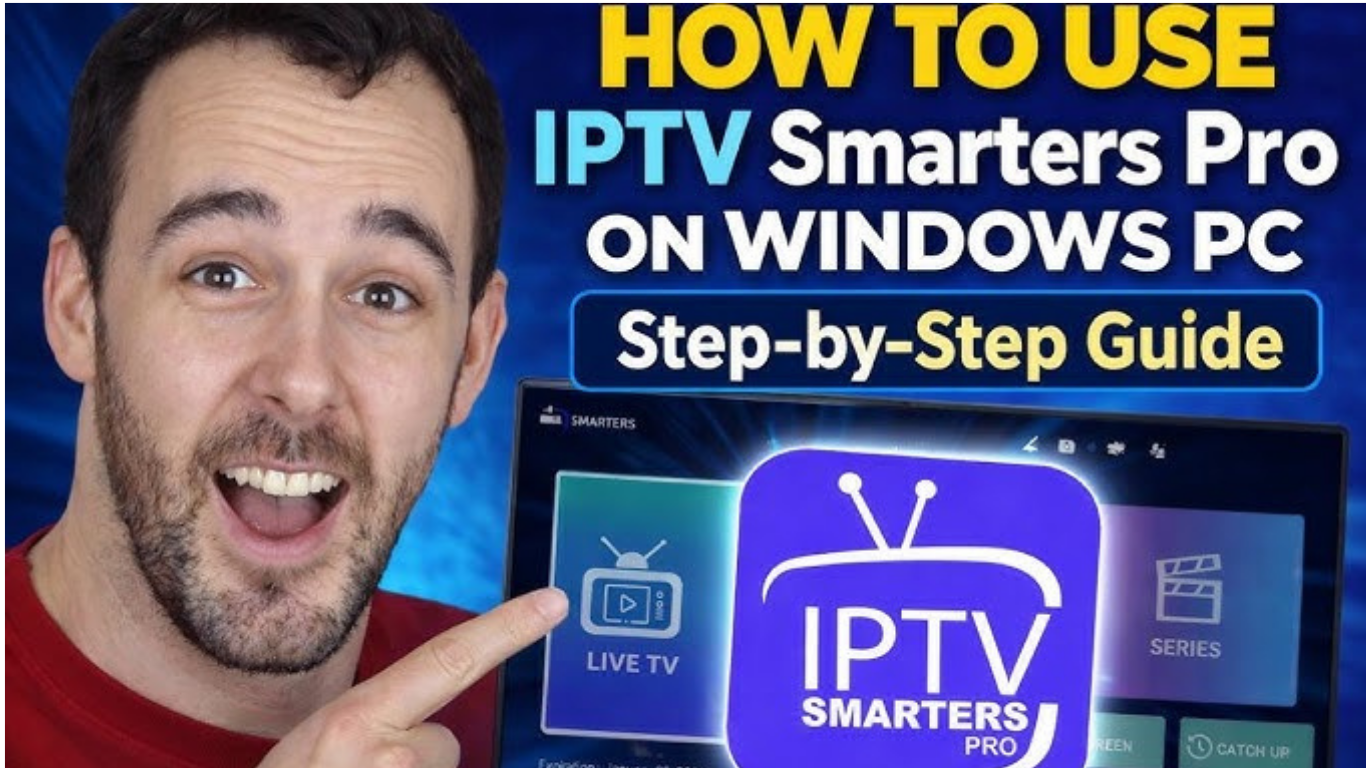
How to Set Up IPTV UK on Windows PC – Complete Step-by-Step Guide
What is IPTV?
- Windows PC
- Mac
- Android TV
- Firestick
- Smart TVs
- Smartphones
- Tablets
Why Watch IPTV on a Windows PC?
- Larger display support
- Easy multitasking
- Keyboard shortcuts
- Better streaming performance
- External monitor compatibility
- Quick installation
- Easy playlist management
Requirements Before Installing IPTV
- Windows 10 or Windows 11 PC
- Stable internet connection
- Active IPTV subscription
- M3U Playlist URL or Xtream Codes login
- IPTV player
Best IPTV Players for Windows
1. IPTV Smarters Pro
- Live TV
- Movies
- TV Shows
- Catch-up support
- Electronic Programme Guide (EPG)
- Xtream Codes Login
- M3U Playlist Support
2. VLC Media Player
- Free
- Lightweight
- Open source
- Compatible with M3U playlists
3. Kodi
Step 1 – Download an IPTV Player
- IPTV Smarters Pro
- VLC Media Player
- Kodi
Step 2 – Install the Application
- Double-click the installer.
- Accept the licence agreement.
- Choose the installation folder.
- Click Install.
- Wait until installation finishes.
- Launch the application.
Step 3 – Get Your IPTV Login Details
Option 1
https://example.com/get.php?username=xxxx&password=xxxx&type=m3u
Option 2
- Username
- Password
- Server URL
Step 4 – Add Your IPTV Subscription
Using IPTV Smarters
- Username
- Password
- Server URL
- Live Channels
- Movies
- TV Shows
- EPG
Using VLC
Step 5 – Organise Your Channels
- Entertainment
- Sports
- Kids
- News
- Movies
- International
- Documentaries
- Mark favourites
- Search channels
- Sort content
- Hide unwanted groups
Step 6 – Start Watching
- Full Screen
- Pause
- Volume Control
- Recording (depending on player)
- Multiple playlists
How to Improve IPTV Streaming Quality
Use Ethernet
Close Background Apps
Update Your Player
Restart Router
Use Fast Internet
- SD: 10 Mbps
- HD: 20 Mbps
- 4K: 40 Mbps+
Common IPTV Problems and Solutions
Buffering
- Slow internet
- Busy Wi-Fi
- Server congestion
- Restart router
- Use Ethernet
- Lower stream quality if available
Playlist Not Loading
- M3U URL
- Username
- Password
- Server URL
Black Screen
- Restarting the player
- Refreshing the playlist
- Updating the application
No EPG
Is IPTV Legal?
Tips for the Best IPTV Experience
- Keep Windows updated
- Use a reliable internet connection.
- Restart your PC occasionally.
- Keep your IPTV app updated.
- Save favourite channels
- Organise channel groups
- Avoid running many heavy programs while streaming.
Frequently Asked Questions
Can I use IPTV on Windows 11?
Which player is best?
Can I use an M3U playlist?
Does IPTV require fast internet?
Why is my IPTV buffering?
Can I watch on multiple devices?
Conclusion
Internal Link Plan for https://iptvuk.lat/
| Introduction | IPTV UK | https://iptvuk.lat/ | Homepage |
| IPTV Players | Best IPTV Apps | /best-iptv-apps/ | Related guide |
| Setup Guide | IPTV Smarters Setup | /iptv-smarters-guide/ | Installation tutorial |
| Troubleshooting | IPTV Buffering Fix | /iptv-buffering-fix/ | Support article |
| Legal Section | IPTV FAQ | /faq/ | Answer common questions |
| Conclusion | Buy IPTV Subscription | / | Encourage navigation |
Conclusion
To conclude, How to Set Up IPTV UK on Windows PC – Complete Step-by-Step Guide provides valuable insights into improving your IPTV experience on any device.
By following the steps in this guide, you can enjoy smooth and high-quality streaming with ease.
Always rely on a trusted IPTV provider, keep your app updated, and maintain a stable internet connection for the best performance.
For reliable IPTV services in the UK, visit
iptvuk.lat —
your go-to destination for premium IPTV UK subscriptions.
Contact Us
Have questions or need assistance? We're here to help!
Get in Touch
Email Us
contact@iptvuk.lat
Available 24/7
Call Us
+447882742512
Available 24/7
Live Chat
Available on our website
Response time: Under 5 minutes
Our Hours
Customer Support: 24/7
Sales Department: Mon-Fri, 9am-6pm GMT
Technical Support: 24/7
